Sharing with your team
Beyond an object’s default visibility, you can grant a specific user or group direct access to one query or dashboard. See The permissions model for how this fits together with group-based connector access — this page is just the how-to for granting it.
Who can share
Only an object’s owner — its creator, or an org admin — can grant or revoke access on it. Owner isn’t a grantable level; it’s fixed to whoever created the object (or any admin). An editor can change the object’s content but can’t share it further.
Granting access
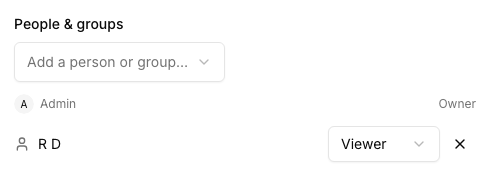
Open the query or dashboard’s sharing panel and add a user or a group, with one of two levels:
- Viewer — can open and read it, can’t change it.
- Editor — can also modify it (edit a query’s SQL, rearrange a dashboard’s widgets, and so on).
Granting to a group applies to everyone currently in that group, and to anyone added to it later — it’s a live membership check, not a one-time snapshot of who was in the group at grant time.
Re-granting access to someone who already has some level of access updates it in place — granting Editor to someone who currently has Viewer upgrades them, it doesn’t create a second, conflicting grant.
Revoking access
Remove a grant from the same sharing panel. Only the person who originally granted it, an admin, or the object’s owner can revoke a given grant.
[!TIP] Revoking someone’s direct grant doesn’t necessarily lock them out entirely — if the object’s visibility is Workspace (the default), every org member can still see it regardless of any individual grant. Direct grants matter most when visibility is Restricted, or when you want to hand out Editor access more narrowly than “everyone in the workspace.”
Where to go next
- The permissions model — how object sharing and group-based connector access combine.
- Public links — sharing a dashboard outside your organization entirely, with no sign-in.