The SQL editor
Every query starts here: pick a connector, write SQL against it, and run it.
Pick a connector
A query always runs against exactly one connector. Pick it from the editor’s connector selector before you start writing — it determines which schema the browser and autocomplete below pull from, and which connector’s SQL dialect you’re writing.
Schema browser
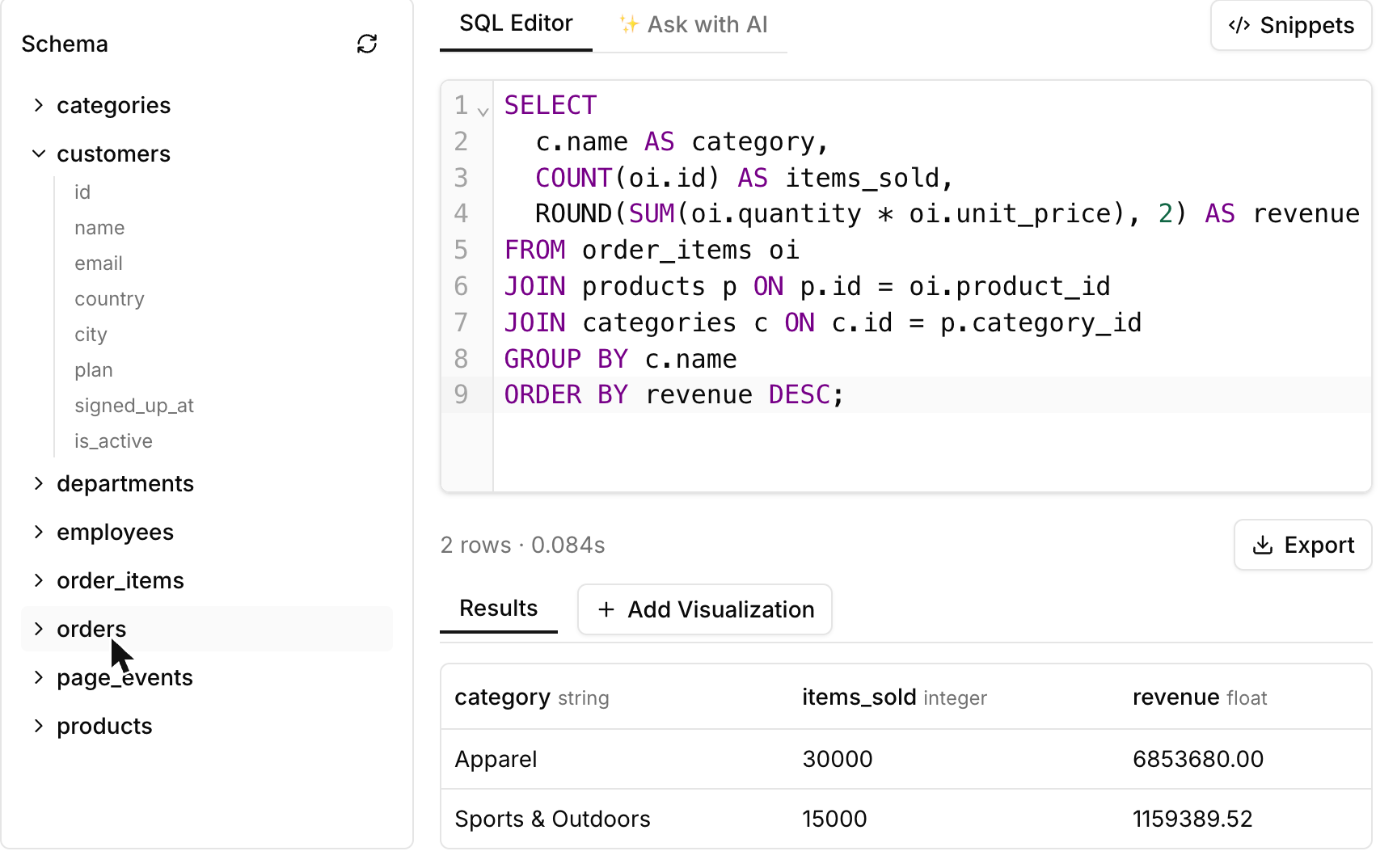
Alongside the editor, a schema browser lists every table the connected connector exposes, with its columns underneath once expanded. Clicking a table or column name inserts it at the cursor, so you don’t have to retype long identifiers.
The same schema also feeds the editor’s inline autocomplete — table and column names from the connected connector complete as you type.
[!NOTE] The schema browser and autocomplete only know table and column names, not sample data or row-level content. If a table you expect isn’t listed, check that the connected connector’s credentials actually have access to it.
Running vs. saving
These are two separate actions:
- Execute runs the SQL immediately against the connected connector and shows the result below the editor. This doesn’t touch the saved query at all — you can run ad-hoc edits without saving anything.
- Save persists the current SQL (and its connector, name, and parameter definitions) as the query. Saving doesn’t run it.
A saved query also has a separate publish step that controls what dashboard viewers and other non-editors see — see Versions, drafts, and publishing for how draft edits and the published version relate.
The editor’s action toolbar is where Run, History, Fork, Share, and publish/archive live, next to the query name:

Execution status
While a run is in flight, the editor shows its current state — queued, running, or (once it finishes) an error banner if the run failed or was cancelled. A successful run replaces the status banner with the result table.
[!TIP] Running a query can return an already-cached result instantly, or hand back a job that has to finish before the result is ready — that’s why a run occasionally shows “queued” for a moment even though most runs return immediately. If you’re calling this through the API instead of the editor, see the async query model for the exact response shapes.
Where to go next
- Parameters — make a saved query reusable across different filter values.
- Snippets — reusable SQL fragments you can insert while writing.
- Visualizations — turn a result into a chart.
- Core concepts — how queries relate to dashboards and monitors.