Refresh and display
Auto-refresh
Every dashboard has a refresh-interval picker: Off, 10s, 30s, 1m, 5m, 10m, 30m, or 1h. Picking an interval re-fetches each widget’s result on that cadence for as long as the tab stays open — it’s a per-session browser setting, not something saved on the dashboard, so it resets to Off the next time anyone opens the page.
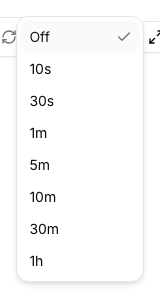
[!NOTE] Auto-refresh re-fetches each widget’s latest already-computed result — it does not force the underlying query to run again. If a query has no schedule and nobody has run it recently, a shorter dashboard refresh interval won’t produce newer numbers. Put the query on a schedule if the data itself needs to stay current, and use the dashboard’s auto-refresh for what a viewer sees while the tab is open.
Manual refresh
Reloading the page re-fetches every widget’s latest result immediately, same as a refresh interval firing. There’s no separate “refresh now” action beyond that — it’s the same fetch either way, just triggered by you instead of the timer.
Full-screen / TV mode
The full-screen action puts the browser into fullscreen (the same native fullscreen the browser
already supports) and hides the dashboard’s own toolbar, leaving just the widget grid — useful for
a wall-mounted display or a screen you’re projecting. Exiting fullscreen (browser control, Esc,
or toggling the action again) brings the toolbar back.
[!TIP] Combine full-screen with a short auto-refresh interval for an always-on office display: set the interval once, go full-screen, and leave the tab open.
Where to go next
- Building dashboards — the widgets a refresh interval applies to.
- Scheduled refresh — keeping the underlying query data itself current, independent of any dashboard’s refresh setting.