Organizing dashboards
Once you have more than a handful of dashboards, tags, favorites, and search are how you find the right one again.
Tags
Add free-text tags to a dashboard from its own page — there’s no fixed tag list to choose from, you type whatever label is useful. The dashboards list shows every tag currently in use as a row of filter buttons; click one to narrow the list to dashboards carrying that tag, click it again to clear the filter. Only one tag can be active at a time — there’s no multi-tag filter and no separate “browse by tag” page, just this filter row on the dashboards list itself.
Favorites
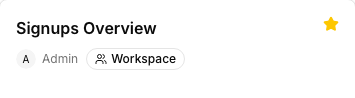
Star a dashboard to pin it to your own favorites list — this is per-user, not shared with anyone else viewing the same dashboard. Unstar to remove it. The favorites list is just the dashboards list filtered to what you’ve starred, so everything that applies to the main list (search, tags) applies there too.
Search and scope
The dashboards list takes a free-text search term (matched against the dashboard name) plus a scope filter:
- All — every dashboard you have access to.
- By me — dashboards you created.
- Shared with me — dashboards someone else created and shared with you directly (not just ones visible because of your group’s default access).
Archived dashboards are hidden from the list by default; opt in to see them alongside active ones when you need to find something you archived earlier.
Where to go next
- Sharing with your team — granting others access, which is what makes a dashboard show up under “Shared with me” for them.
- Building dashboards — creating the dashboards you’ll be organizing.