Notification destinations
A destination is a configured place a monitor’s notification can be sent. Create one once, then
subscribe any number of monitors to it. Creating, editing, or deleting a destination requires the
manage_destinations permission; any org member can see the destination list (with secrets
stripped — see below).
There are exactly nine destination types.
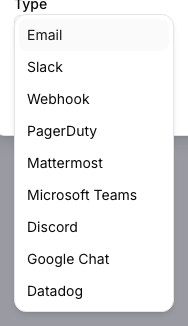
Sends to a fixed “To” address. The subject and body default to a standard “monitor {name} is now {state}” message; both can be overridden per monitor with custom text — see Alerts overview for the token substitution available in a custom message.
Slack
Posts to a Slack incoming webhook URL. Configure the webhook URL when creating the
destination; the payload arcodash posts is Slack’s standard incoming-webhook JSON shape (a text
field plus optional formatting), so it renders as a normal message in whichever channel the
webhook is bound to.

Webhook
A generic HTTP callback to a URL you provide, optionally with a custom username and icon emoji for display purposes. The payload is JSON describing the state transition — the monitor’s name, its new state, and enough context to identify which monitor fired — for you to parse and route however your receiving endpoint needs.
PagerDuty
Triggers a PagerDuty incident via an integration key (PagerDuty’s Events API v2 routing key). Use this for on-call paging rather than a passive notification.
Mattermost
Same shape as Slack: a webhook URL, plus optional icon emoji and username, posted to a Mattermost incoming webhook.
Microsoft Teams
Posts to a Teams incoming webhook URL configured on the channel you want notified.
Discord
Posts to a Discord webhook URL configured on the channel you want notified.
Google Chat
Posts to a Google Chat webhook URL configured on the space you want notified.
Datadog
Sends an event into Datadog via an API key, with an optional site override (for example,
datadoghq.eu) if your Datadog account isn’t on the default datadoghq.com site.
Secrets are never echoed back
Whatever field carries the actual credential for a destination type — a webhook’s full URL (the token lives in the URL itself), PagerDuty’s integration key, Datadog’s API/app keys — is stripped out of every response after creation. You can update it (or leave it blank to keep the current value unchanged), but you can never read it back through the UI or API once set.
Where to go next
- Alerts overview — subscribing a monitor to a destination and how notifications relate to monitor state changes.
- Managing monitor incidents — delivery history per monitor, and re-sending a notification manually.