AI-assisted SQL generation
Instead of writing SQL by hand, you can describe what you want in plain language and have arcodash draft the query for you.
How it works
Type a question about the connected connector (e.g. “monthly signups by plan for the last 6 months”). Ask with AI is an agentic loop that streams each step to the panel as it happens:
- It drafts a SQL statement in the connector’s dialect, using the connector’s schema and AI profile (see below). If you already have a query in the editor, describing a change refines the existing SQL instead of starting over.
- It checks that the draft is a single read-only
SELECT(orWITH ... SELECT). Anything else is never run. - It runs a read-only preview of the draft (up to 20 rows, five shown) against your connector.
- If the preview fails, it feeds the database error back to the model and tries again, up to three attempts in total. If the error says a table or column doesn’t exist, it can also refresh the connector’s AI profile.
- It returns the final query with a short explanation, which you review in the editor.
Fix with AI on a failing query goes through the same loop, with your SQL and its error as the starting point.
[!NOTE] The loop’s preview is read-only and capped, and nothing is saved. The final SQL lands in the editor as a draft: you review it and hit Execute yourself, exactly like any SQL you typed by hand. The preview rows are shown to you; they are not sent to the AI provider.
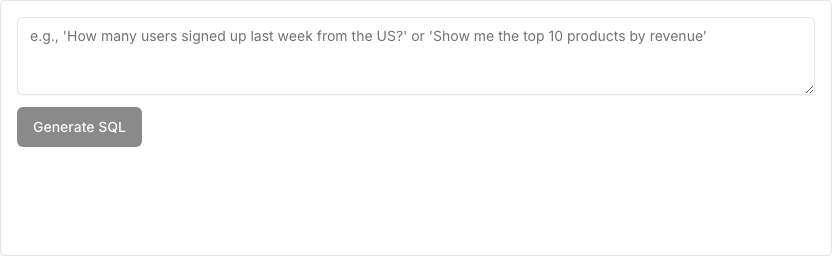
The “Ask with AI” tab sits next to “SQL Editor” and holds the question box and the Generate SQL button:
The data source AI profile
Ask with AI, Suggest checks, and alert explanations work better with context about your data. Each data source can carry an AI profile, built in two passes:
- Schema pass: tables, columns, and relationships. Relationships come from declared foreign keys (PostgreSQL, MySQL, and SQLite), joins mined from your saved queries, and a name-matching heuristic. An AI-written description is added for each table and column. A schema-only refresh runs daily for sources in organizations that used AI in the last 30 days.
- Data pass: samples up to 200 rows per table inside arcodash and stores a digest per column (null fraction, distinct count, the most common values, min/max). Views are skipped. On metered warehouses (BigQuery, Athena, Snowflake, Redshift) it runs only when you explicitly request a full pass, and BigQuery samples are capped on bytes billed.
The profile is managed from the data source’s detail page.
What’s sent, and what isn’t
Each request goes to your organization’s configured AI provider (Gemini, OpenAI, or Anthropic), using your organization’s own key. It contains your question, the connector’s schema, the AI profile notes for the relevant tables, the SQL in the editor, your recent queries, and any database error message from a failed preview. The profile notes include sampled column values unless an admin turns off Include sample values in AI prompts in AI Settings. Result rows from the preview are never sent. See Data handling & privacy for exactly what every AI feature sends.
Admin configuration
This feature is optional and configured per organization. An admin enables it by adding a provider API key (in AI Settings - see AI provider configuration) and can set a rate limit on how many generation requests are allowed per user per minute. If no key is configured, the feature says so and points you at AI Settings.
Once configured, generating SQL is available to any user with access to the target connector - using the feature doesn’t itself require admin rights, only configuring it does.
[!TIP] Always read the generated SQL before running it, the same as you would review any query someone else handed you - it’s a draft to check, not a black box to trust blindly.
The other AI features
The same provider key powers more features:
- Auto Visualize picks a visualization type and configuration for a query result (see Visualizations).
- Suggest checks proposes data-quality monitors from a connector’s schema and AI profile (see Data observability monitors).
- Why did this fire? adds an explanation to alerts (see Alerts overview).
Ask with AI, Fix with AI, Auto Visualize, and Suggest checks share the same per-user rate limit.
Where to go next
- The SQL editor - where the generated SQL lands.
- Parameters - parameterize a query once you’ve got the SQL right.
- AI provider configuration - keys, provider order, models, and rate limits.