Building dashboards
A dashboard is a grid of widgets - each one either a query’s visualization or a block of static text - that you arrange, resize, and share as a single page.
Create a dashboard
Give it a name and you land on an empty grid. A brand-new dashboard has nothing published yet, so only you (or anyone else with edit access) can see it until you publish.
Add a widget
Two kinds of widget go on a dashboard:
- Visualization - pick one of your saved query’s visualizations (a table, chart, counter, or funnel). The widget shows that visualization’s current result.
- Text - a block of plain text for a header, a note, or context between chart tiles. It renders as-is, with no markdown formatting.
Arrange the grid
The dashboard grid is 6 columns wide. Drag a widget to reposition it, or drag its corner to resize - both width (in grid columns) and height adjust independently. Layout changes save to the draft once you stop moving tiles.
Draft vs. publish
A dashboard has the same two-state model as a query: editing it (adding, removing, or moving widgets) only changes the draft; everyone besides an editor keeps seeing the published snapshot until you explicitly publish. Toggle between Edit (the live draft) and View (what’s currently published) to check what a viewer sees before committing to it.

- Publish overwrites the published snapshot with the current draft. This requires the dashboard to have a name and at least one widget - an empty or unnamed dashboard has nothing for a viewer to see, and publishing is rejected until both are set.
- Discard throws away the draft and resets it back to match whatever’s currently published - use it to back out of in-progress changes you don’t want to keep.
The first publish and republishing an already-live dashboard are the same action: publishing is always a full overwrite, with no separate “push changes” step.
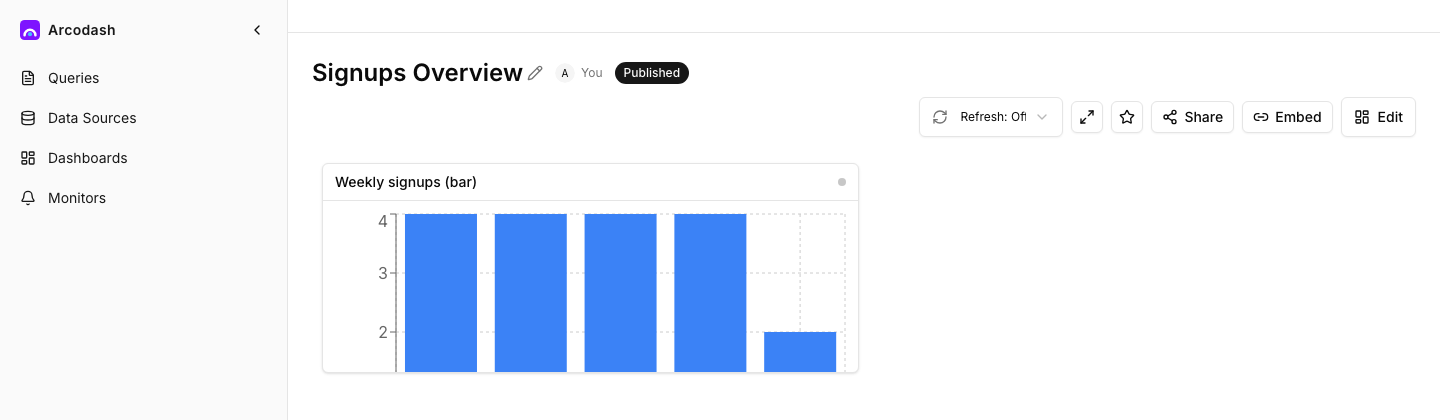
[!NOTE] A dashboard can’t be shared publicly or embedded until it’s been published at least once - a public link or embed has nothing to serve from an unpublished draft. See Public links and Embedding.
Where to go next
- Dashboard parameters - one filter bar that drives every widget at once.
- Refresh and display - auto-refresh, manual refresh, and full-screen mode.
- Organizing dashboards - tags, favorites, and search.
- Alerts overview - a dashboard shows the data; a monitor on the same query notifies you when it crosses a threshold, without anyone watching the page.
- Core concepts - how dashboards, widgets, and visualizations relate.