What AI should actually do in a BI tool
Plain-English questions with a read-only preview, one-click query repair, chart summaries and alerts that explain themselves.
AI in a BI tool should do the boring work and show its work. Draft SQL from a plain-English question and run a read-only preview so you see rows before anything is applied. Repair a broken query and show the diff. Summarize charts with links back to the source. Explain why an alert fired. Run it on your own model key, and let an admin switch any feature off. If it can't be previewed, checked or turned off, it doesn't belong.
Every dashboard tool has an AI button now. Most of them do one of two things: a chatbot in a side panel that answers questions about nothing in particular, or a “magic” generate button you’re supposed to trust.
I don’t want either. I want the AI to do the work I’d hand to a junior analyst on a slow Friday, and I want to be able to check it in ten seconds. Here’s what that looks like.
Ask in plain English, then see the rows
Half of a data lead’s week is writing the same SQL for people who could have asked. So “ask in plain English, get a query” is the obvious feature. The difference is what happens next.
A model that drafts SQL and hands it over is a risk. It can reference a column that doesn’t exist, join on the wrong key, or return something plausible and wrong. The rule I’d hold any tool to: preview before apply.
- The AI drafts the query from your schema.
- It runs a read-only preview, so it can’t change anything.
- You see the actual rows next to the SQL.
- Only then do you apply it to the editor, regenerate it, or throw it away.
Read-only is the part that matters. A draft query touching production data with write access is a bad afternoon waiting to happen. And “you see the rows” matters because wrong SQL usually looks right until you look at the output.
Fix a broken query, and show what changed
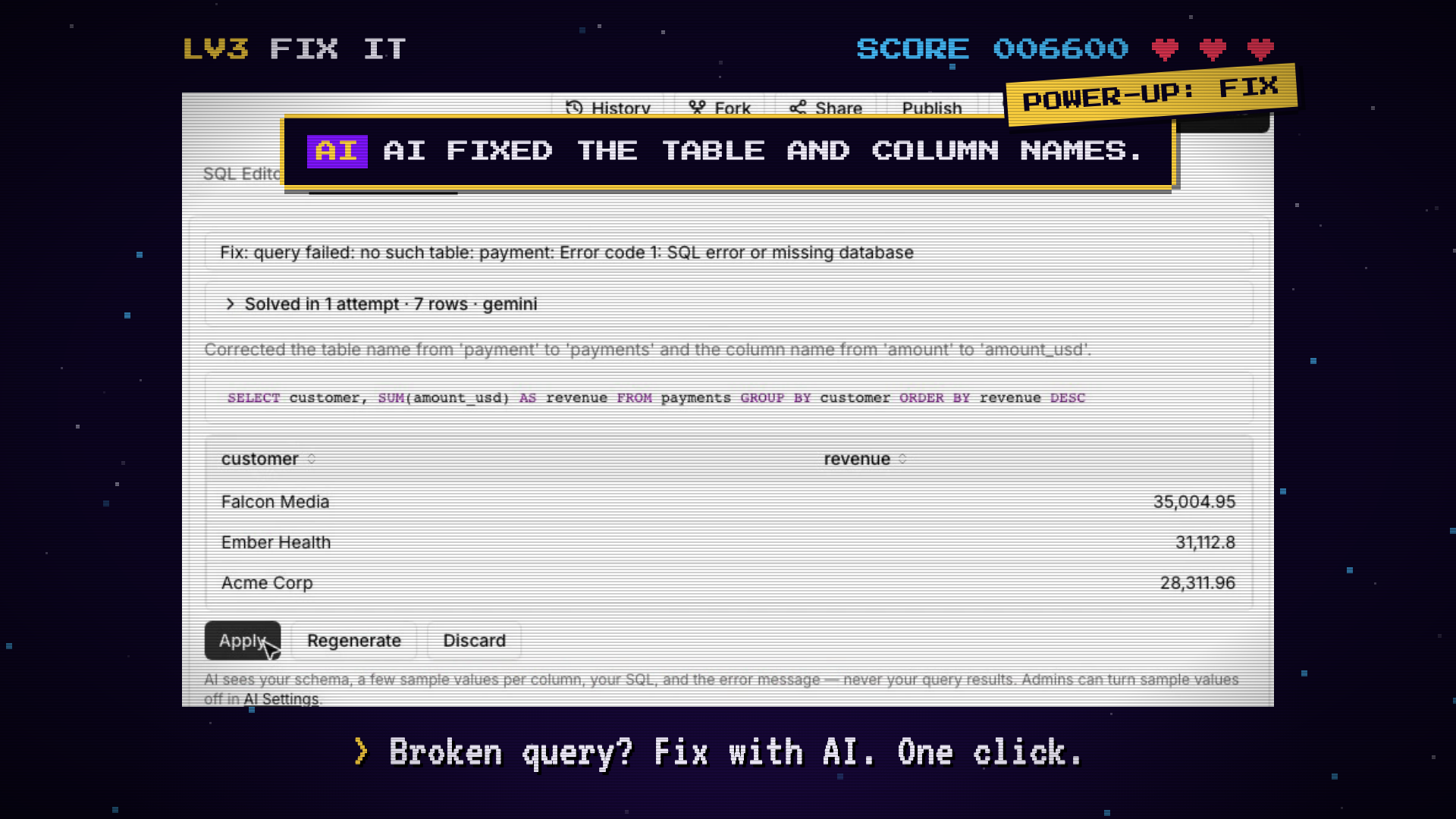
The second boring job is the most common one. You paste a query, it fails: no such table: payment. You stare at it for a minute before noticing the table is payments.
This is a great job for a model, because it has a checkable answer. The query either runs or it doesn’t. A good version does three things:
- Reads the error and the schema, and proposes a corrected query.
- Says in one line what it changed (here, the table name and the column name).
- Runs it, shows the rows, and leaves the buttons in your hands: apply, regenerate, discard.
Note what it didn’t need. The screenshot’s footer says the AI sees your schema, a few sample values per column, your SQL and the error message, never your query results, and admins can turn sample values off. That’s the right shape. The model needs the structure of the data to fix a name. It doesn’t need your revenue figures.
Explain the charts, with receipts
Nobody reads twelve charts. They read the top one, then ask you what’s going on.
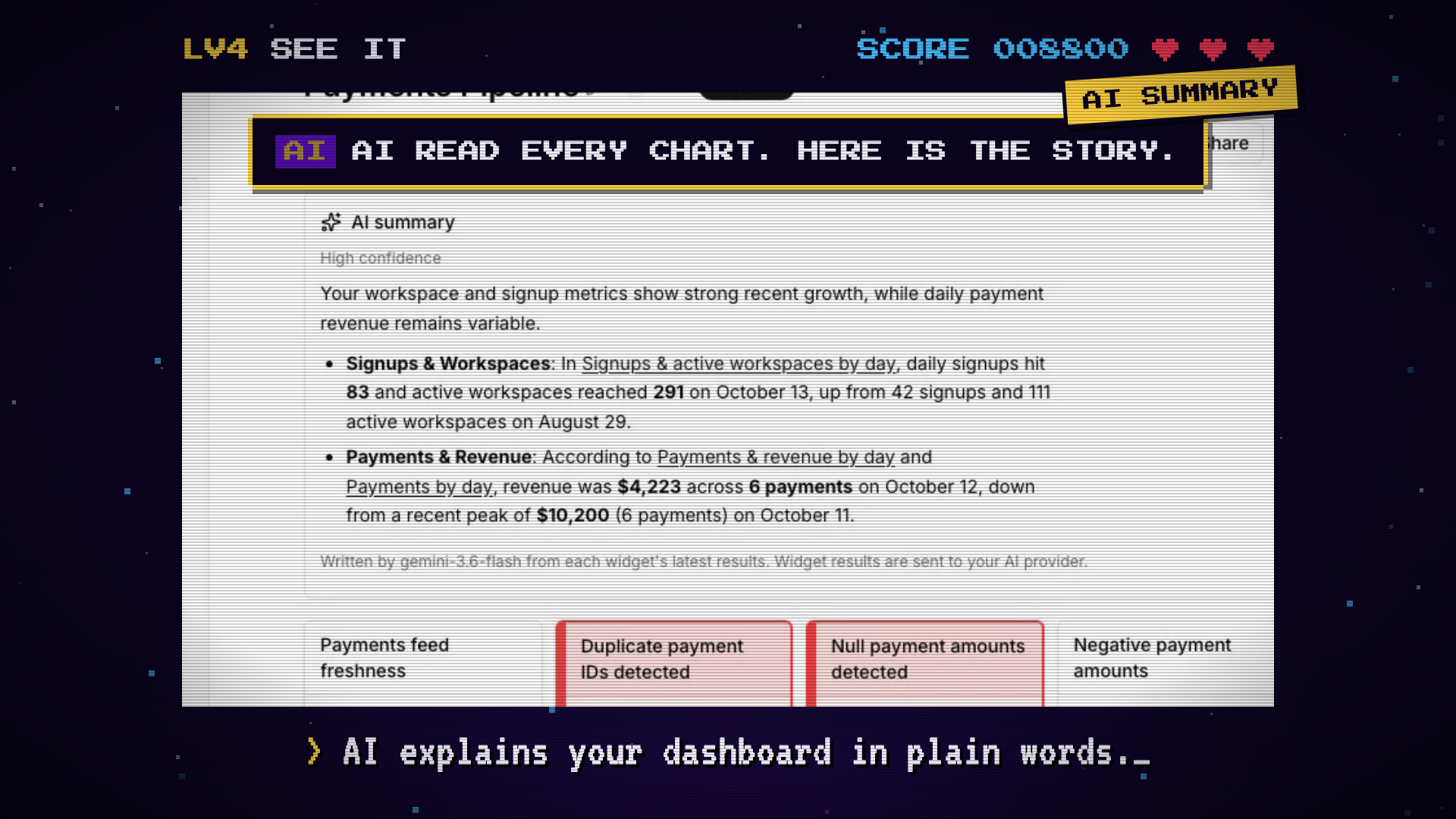
A dashboard summary can do that first read: a few plain sentences on what moved, with each claim linked to the chart it came from. The links are the point. A summary without sources is a confident paragraph you have to re-verify from scratch. One with links is a table of contents you can check in a click.
It should also say how sure it is, and where its words came from. A line like “written from each widget’s latest results” tells you what it saw. Anything it didn’t see, it shouldn’t be talking about.
Explain the alert
The most underrated use is the one nobody demos, because it’s not pretty. A check fires at 2am: duplicates detected. The alert is correct and not very helpful.
What you want in the Slack message is a first guess: which segment moved, what changed against the last good run. Not a verdict. A lead. You’ve saved ten minutes of opening tabs and writing exploratory queries, and you still make the call about whether it’s real.
That’s “why did this fire” in a sentence. It works because the model has something concrete to look at: the check, its history and the data it ran on. It’s explaining a number, not improvising.
The rules I’d hold any AI feature to
Here are the ones I keep coming back to:
- Preview before apply. If it writes SQL, you see rows first, read-only.
- Show the change. A fix says what it fixed.
- Link the claims. Summaries point at their source.
- Send the minimum. Schema and a few samples, not your results, and the sample part is optional.
- Bring your own key. The model bill is yours, to a provider you chose, not marked up inside a seat price.
- An admin can turn it off. Per feature, no argument needed.
If a feature fails one of these, it’s a demo, not a tool.
Where arcodash fits
I’m building arcodash with these rules. It’s hosted and in early beta.
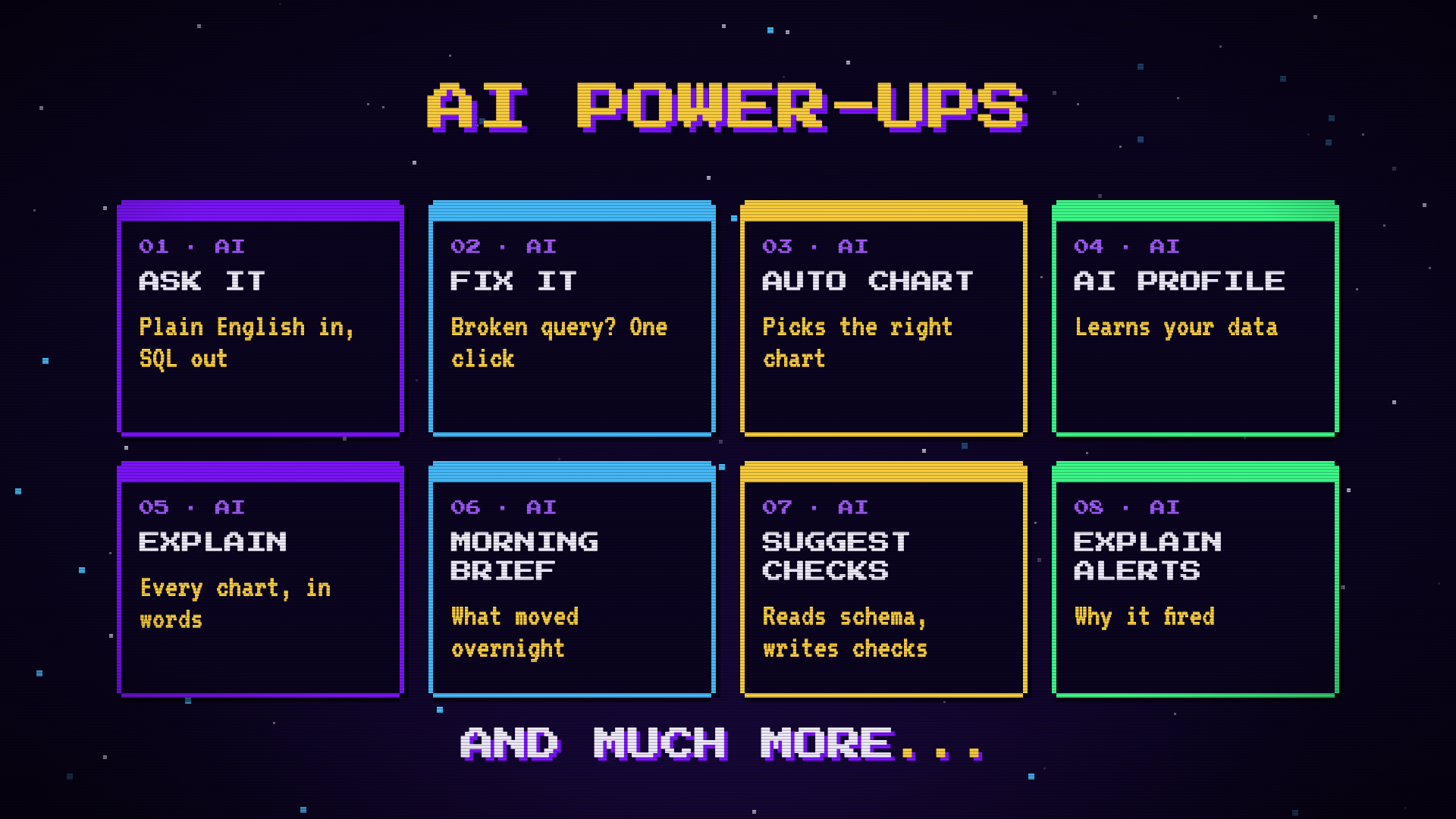
Ask with AI drafts SQL, runs a read-only preview and shows rows before you apply. Fix with AI repairs a broken query. Auto Visualize picks a chart. The dashboard summary links to its charts. Alerts can say why they fired, in the app and in Slack. Suggest checks reads a schema and proposes data checks.
All of it runs on your own Gemini, OpenAI or Anthropic key, so you pay your provider directly for the model calls, and an admin can switch any AI feature off. arcodash itself is from $59/month with unlimited seats and no usage billing. 14 days free, no card.
Try the boring parts first
Don’t start with the clever stuff. Take a query you wrote last week, break a table name on purpose, and see what the tool does. Then ask it a question you already know the answer to and compare the rows.
If it passes those two, it’s earned a harder one. You can start free, or look at a live demo dashboard first.